Bill your tenants using consumption data from Metry
Bill your tenants using consumption data from both main meters and your own sub-meters. In Metry you handle data collection, the mapping between meters and rental units, and all quality control of metering values. Tariffs and similar settings are managed by the billing department as usual in their accounting system.
We support billing for the following configurations:
- Pass-through billing of main meters
- Individual sub-metering (ISM/IMD) billing
- Fixed percentage distribution of consumption from main meters or sub-meters
- Deduction of consumption from sub-meters (e.g. if a meter for facade signage is connected in series with a tenant meter due to how the cabling is routed in the building)
The tenant billing add-on
Contact your account manager or support@metry.io to order the tenant billing add-on.
Once the service is enabled you can:
- Choose which rental units to invoice and what share of each meter’s consumption to invoice
- Choose whether to review deviating consumption and zero values before they are approved for billing
- Export billing data
Getting started
1. Set up rental units
Add the rental units you want to bill as tree groups in the Metry portal. We recommend grouping rental units by property, and also by area/region if you have many properties in your portfolio.
Enter the unit ID (or a similar reference from your billing system) to link the tree group in Metry to your billing system.

Here you add tree groups and subgroups.
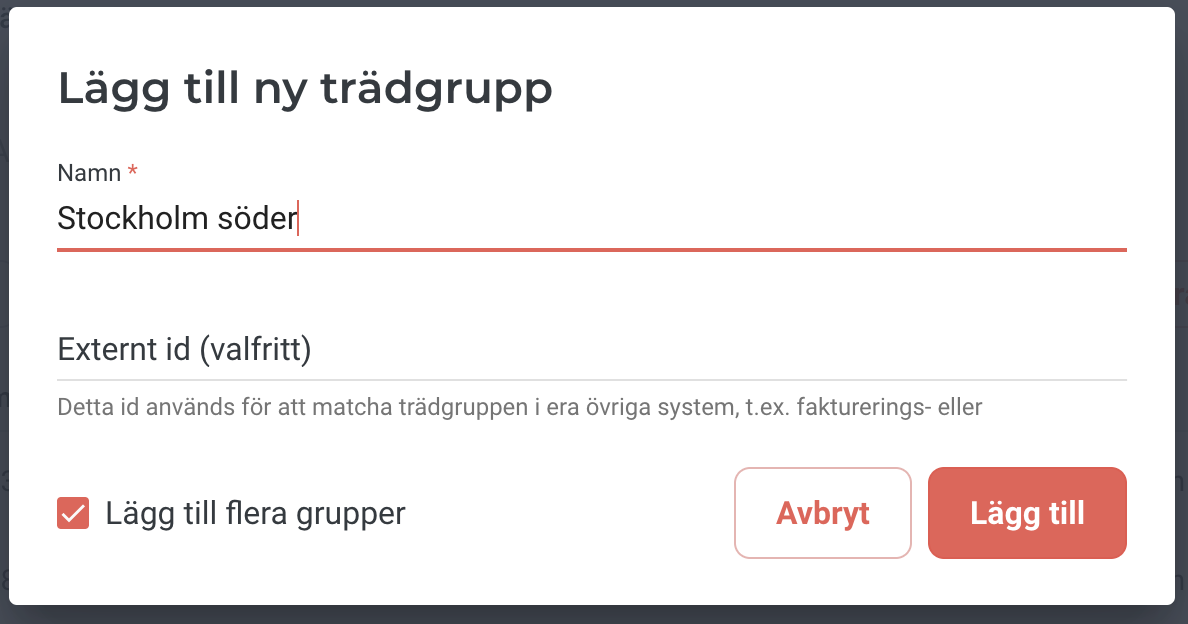
Example of adding an area.
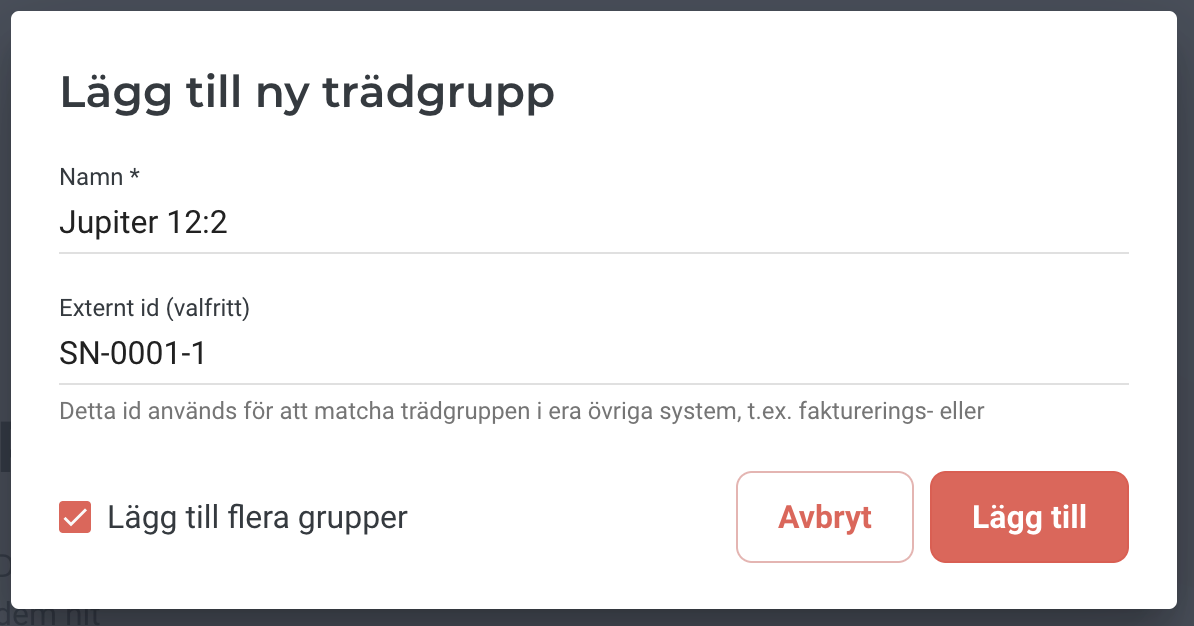
Example of adding a rental unit with a unit number as reference.
Tree groups that are to be billed must not have subgroups.
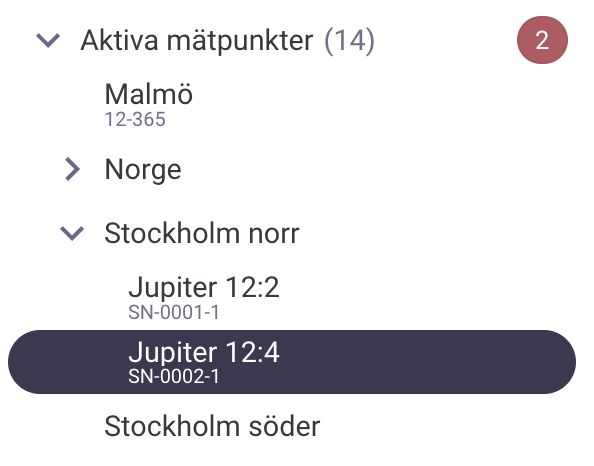
Example of how part of a folder structure can look.
Contact your account manager or support@metry.io if you instead want to set up an integration with another system to sync your properties and rental units from there.
2. Map meters to rental units
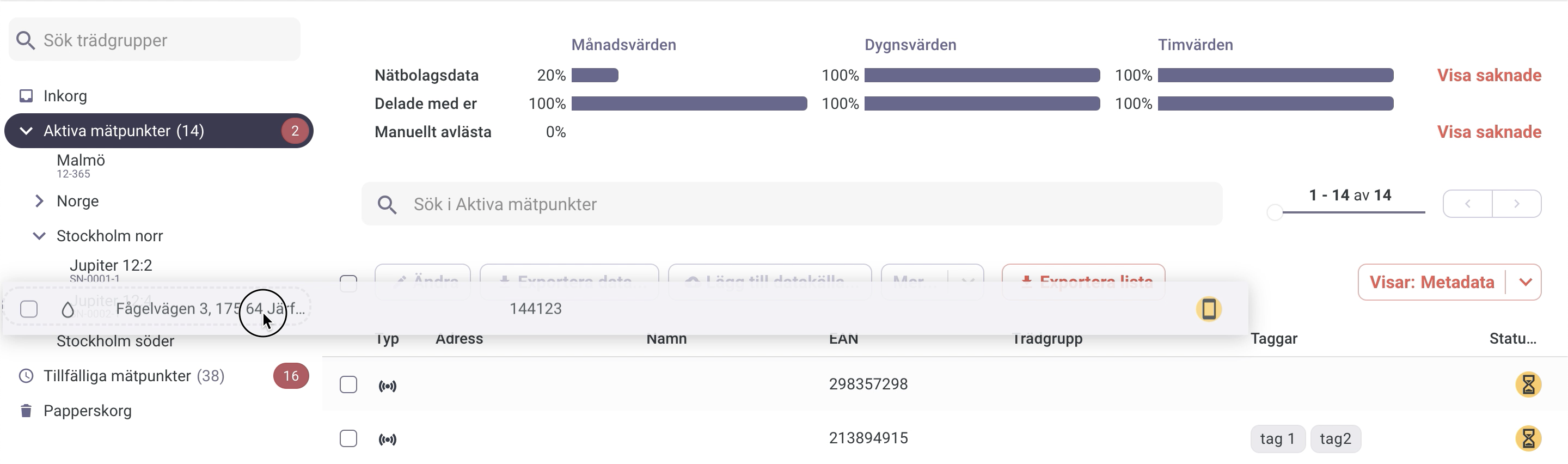
Drag and drop the meters to be billed from Active meters to the rental units.
Drag the metering point from Active meters once for each rental unit, if more than one unit is to share the costs of consumption.
3. Enable billing and select the share to invoice
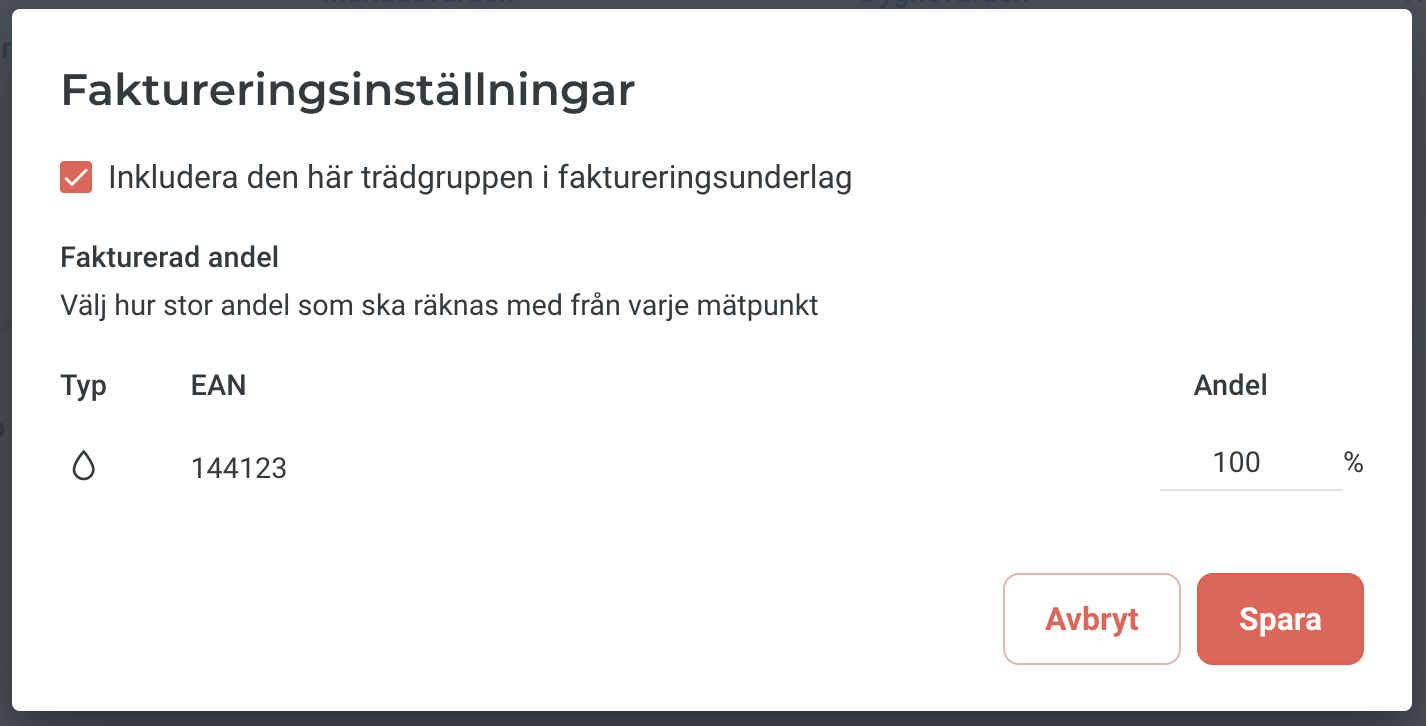
Click the Billing settings button on the rental unit page. Check the box Include this tree group in billing data.
Select the share of each meter’s measured consumption you want to bill the tenant by changing the percentage on the right.
Example: distribution of heating from main meter. Set 40% as the share for each rental unit if a building has two equally sized premises and approximately 20% of the building consists of stairwells and other common areas.

4. Configure your billing system
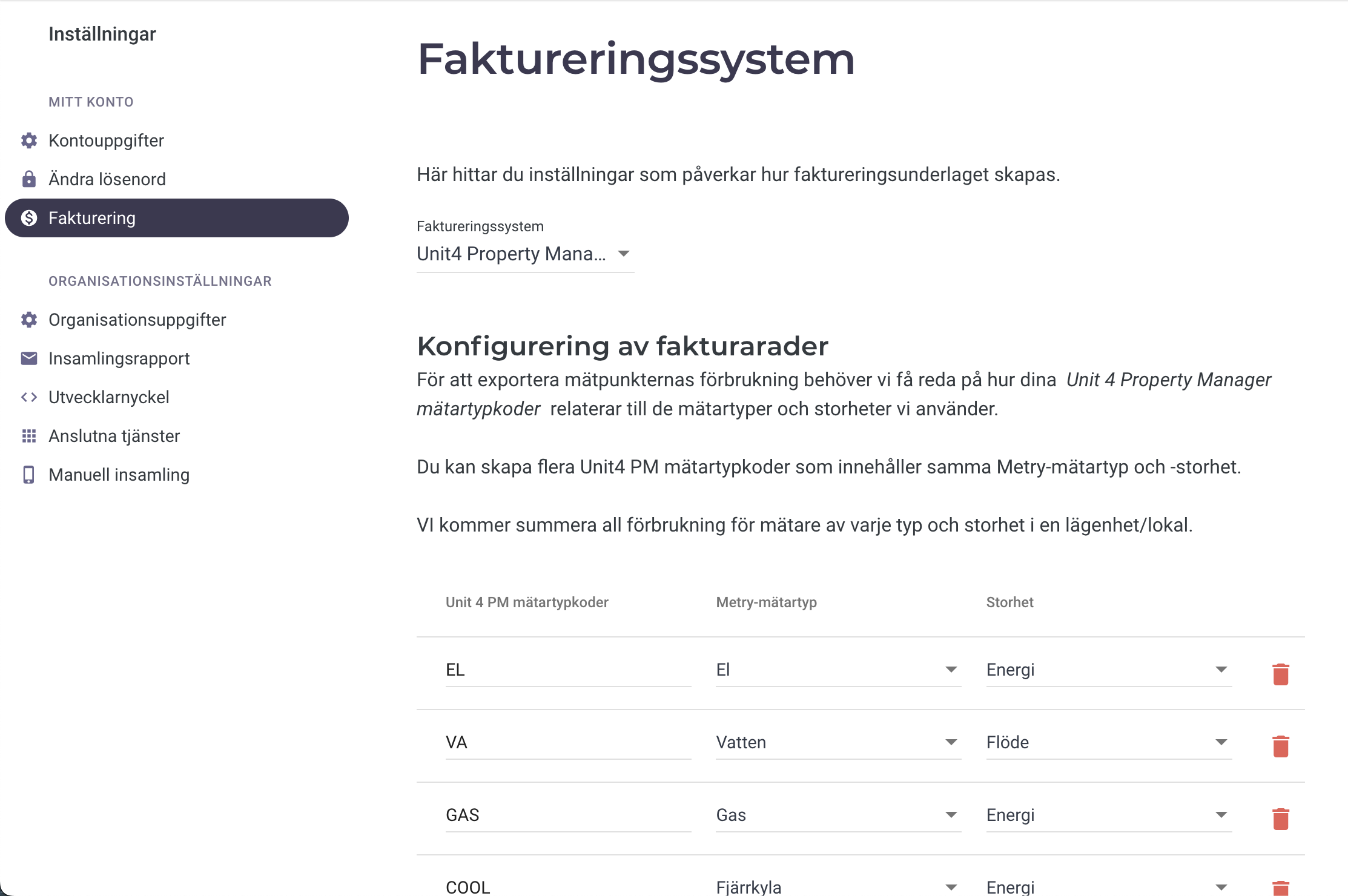
Click Settings in the menu at the top right next to your name. Then select Billing in the left menu.
Select the billing system you use and fill in details about what types of meters and quantities you are billing.
5. Download billing data
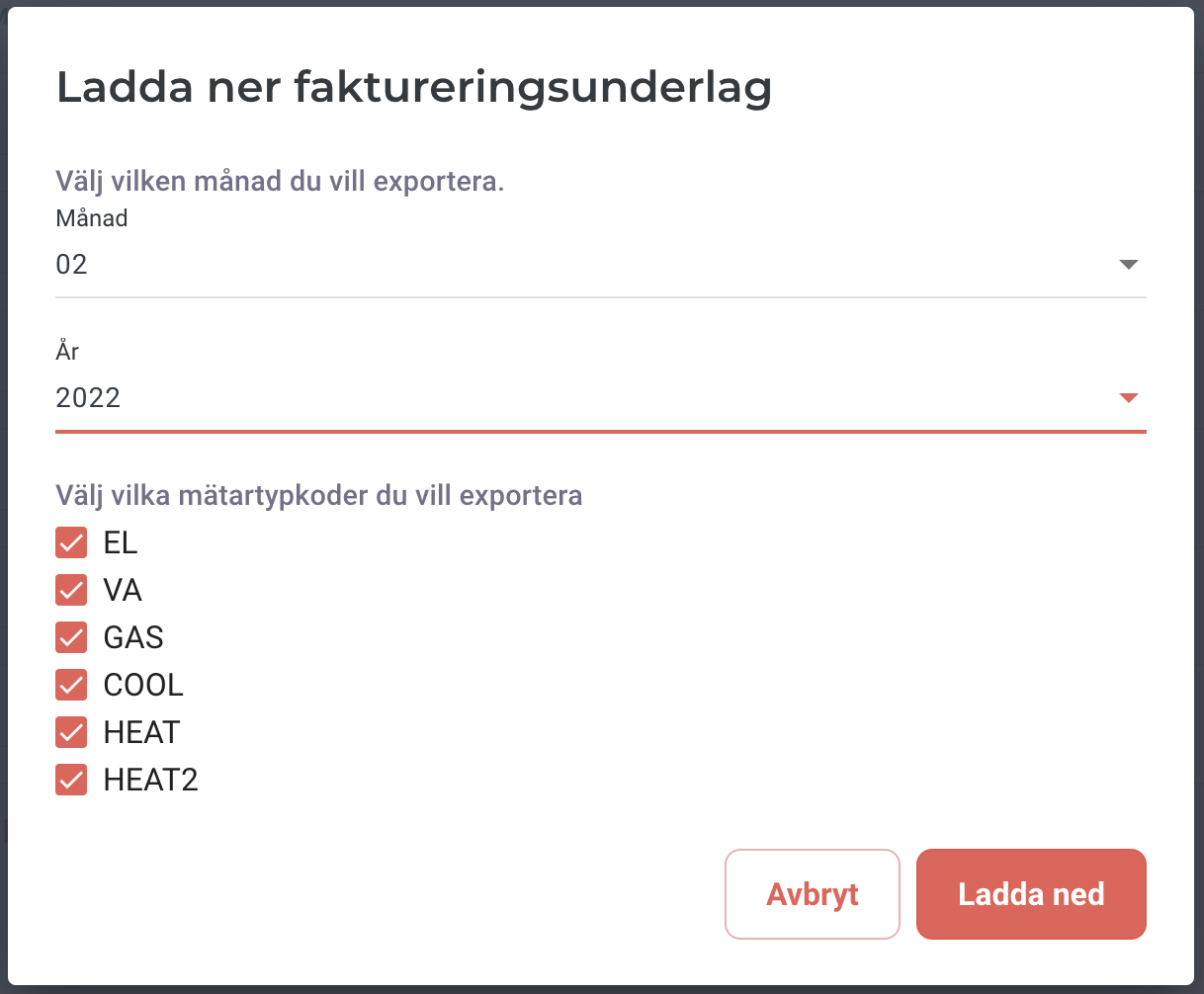
If you did not just follow step 4 – click Settings in the menu at the top right next to your name. Then select Billing in the left menu.
Click the Download billing data button. Then select the month and year you want data for in the dialog that appears and click Download.
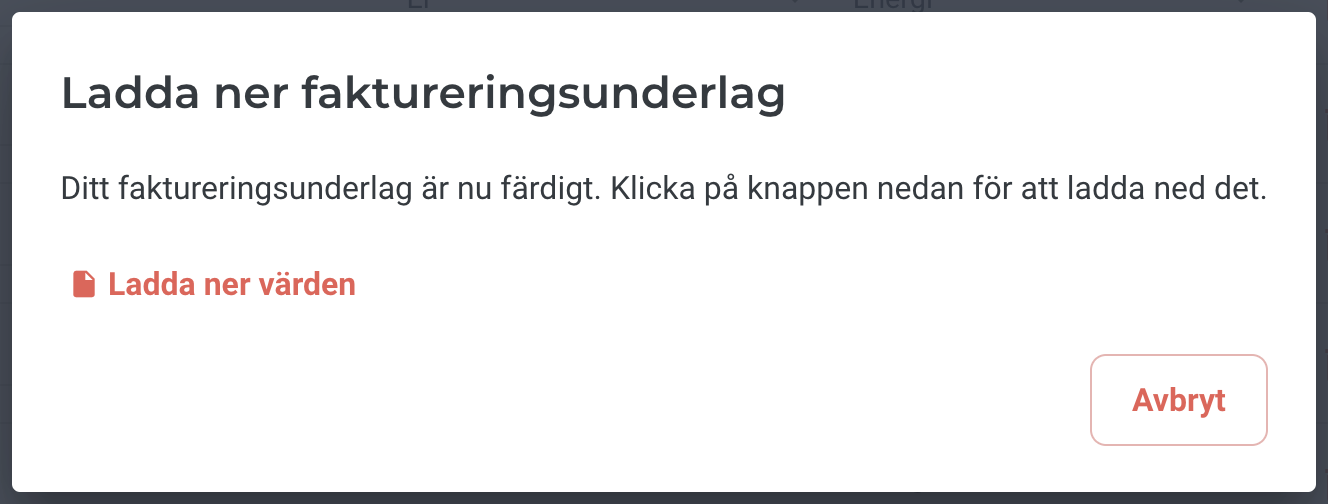
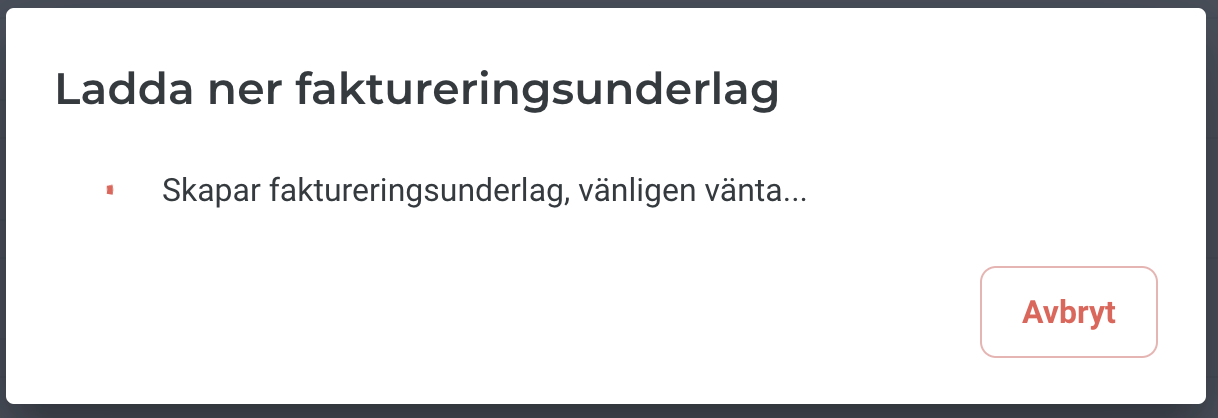
We are now generating your billing data. This may take a moment if you have many rental units.
Click Download values to get a file to import into your billing system.