How can we help you?
Find answers to frequently asked questions, guides and tips for using Metry.
Can't find an answer to your question? Contact us at support@metry.io
What you need: Login credentials for the utility provider’s customer portal. If you don’t have them, check the utility’s website. Your customer number and any PIN code are usually shown on the latest invoice. The exact details required are shown when you set up the collection.
If you are collecting into your own organization
Collection > Utility providers > “Add provider” > choose provider > “Add customer credentials” > enter credentials.
Read more →Sync your data collection manually , and any newly found metering points will be added to the Inbox.
Read more →If a monthly value is often missing for a particular metering point, it may be because the utility provider’s collection or publication is delayed. In such cases, we recommend ordering collection of metering values via file for the metering point in order to continuously receive values. With file-based collection, we can supplement the collection and through redundant collection reach levels that in some cases are better than the average of the utility providers’ own collection.
Read more →Data collection from utility providers inventories your metering points and collects associated metering values. When created, it verifies your login credentials, then retrieves a list of your metering points and their values. At scheduled intervals, it re-checks for new metering points and updated values. New metering points appear in the Inbox; terminated metering points are marked as terminated.
Read more about how to set up collection
What data is collected?
In general, the following is collected:
Read more →There are several reasons why metering values may be present on the utility’s customer portal but missing in Metry.
The metering value was updated after the last scheduled collection.
The metering value is not ready to be collected
Metry only collects complete, quality-assured values. If a value is still being processed by the utility, it will be picked up in the next scheduled collection.
If you want more information about why your value has not been collected, contact our support team.
Read more →We continuously add collection from new utility providers based on demand and interest. We can prioritize a utility provider for a one-time fee (the price depends on your pricing plan).
Place the order at support@metry.io and we will need login credentials to be able to build the automatic collection.
Read more →Metry needs login credentials for your utility providers to keep track of which metering points you have and to sync their metering values.
If the credentials change so that we can no longer log in to the utility’s customer portals, we notify you both in the Metry portal and in the collection report we send out at the beginning of each month.
Why have my credentials stopped working?
There are several possible reasons for this.
Read more →To collect metering values via file (monthly values and hourly values) for your active metering points, you need to upload a signed letter of authority granting Metry the right to collect energy data on your behalf.
- First download the letter of authority template (see link below)
- Fill in your organization details and have the company’s authorized signatory sign it.
- Scan the signed copy and upload it in PDF format to the Metry customer portal, or send it to support.
Other documents that are sometimes requested include subsidiary lists and certificates of registration. E.ON requires a certificate of registration. These can also be uploaded to Metry or sent to support.
Read more →Sometimes you need to keep track of which customer credentials belong to which subsidiary, or quickly see which building a troublesome sub-metering gateway is located in. You can solve this by adding extra information to your login credentials for a utility provider or for a sub-metering system.
In the Collection tab, you can click on your data sources and there is a field called Name that you can use for exactly this purpose. The name is optional but can be useful if you have the problems described above — for example if you have many accounts for the same utility provider and you know that each one corresponds to a building in your portfolio or perhaps a housing association in your management, but you are not sure which is which. The name can be added when you set up a new collection source, but it can also be added and edited later.
Read more →We strive to collect complete monthly values by collecting data from the following types of sources in the utility providers’ customer pages:
- Meter readings
- Consumption marked as complete or final
Some utility providers lack the information about whether the monthly values are complete or not. We have contacted these providers and configured our collection robots to start collecting the day of the month the providers guarantee that the values are complete.
Read more →If BankID syncing is not working, the steps below cover the most common causes.
The BankID request times out or nothing happens
The BankID request is sent to the mobile device registered with the utility provider, not necessarily the phone you normally use.
- Make sure you are signing in the BankID app on the correct phone - the one whose BankID is registered with that utility provider.
- The request expires after roughly 30 seconds. If it expires before you sign, start the sync again.
- If you have multiple BankID apps installed, make sure you open the correct one.
The sync completes but no values appear
After a successful BankID signature, Metry fetches the metering data. This can take up to 24 hours for the first sync. If values are still missing after 24 hours, contact support@metry.io with the name of the utility provider and the metering point ID.
Read more →Some utility providers have moved from username/password login to BankID authentication on their customer portals. When this happens, Metry can no longer collect data automatically using your stored credentials - you need to switch collection method.
What changes
Previously Metry logged in to the utility’s customer portal with your username and password each night. Once a utility requires BankID, that automatic login stops working. You will see collection errors or missing values in the Metry portal.
Read more →You can manually trigger a sync under Collection > Utility providers. Select the credentials you want to sync and click the refresh icon.
When syncing requires BankID, you will receive a reminder at the bottom of the Metry portal. This reminder appears daily until all metering points are synced.
- Select Sync now and check the utility providers that need to be synced.
- Sign with BankID on your mobile once for each utility provider.
Only the person whose BankID is registered with the utility provider can perform the sync.
Read more →Supplement your data collection from utility providers with file transfers to:
- Get monthly values earlier. If you need values before they are published on one or more of your utility providers’ customer portals, file-based collection can often provide values earlier in the month.
- Collect hourly values to analyze consumption in more detail. You need to have the hourly values feature enabled on your Metry account in order to collect hourly values.
Depending on your agreement with us, there may be a one-time cost for each ordered file transfer. This will be clearly shown when you place the order.
Read more →To ensure quality in your data collection or to access higher-resolution data, Metry offers the option to order collection via file. The format and protocol used depends on the energy type and which utility provider the subscription belongs to. For electricity collection, utility providers typically supply files in Ediel format. For other energy types, Metry’s staff can contact the utility to investigate what data is available for your meters and whether there are any costs involved in exporting it — the most commonly supported energy types are district heating and district cooling.
Read more →Supplement your data collection from utility providers with file transfers. Read more about the benefits here .
How to do it

1. Select metering points
- Open the Metry portal and go to Metering points > Active Metering Points.
- Choose to display the list in the Collected data view to more easily see what is being collected.
- Filter by utility provider and energy type (electricity, heat, or district cooling) for which you want to order collection via file. Use the filter Collection method: Only from customer portals to exclude metering points that already receive data via file transfer.
- Check the metering points you want to supplement with file transfer. There is currently a limit of 50 metering points per order. Contact support@metry.io if you want to order more than that.
Ediel is the name of a system for electronic information exchange used by all actors on the electricity market to communicate with each other in a standardized way. Metry can collect your metering values via Ediel if customer portal support is lacking, if you want to add an extra data source to ensure higher data quality, or if you want to order hourly values for your metering points.
Read more →In the Metry portal you can monitor the collection of monthly and hourly values. In Active meters (and tree groups) there are bars showing what percentage has been collected for the different resolutions being monitored this month.
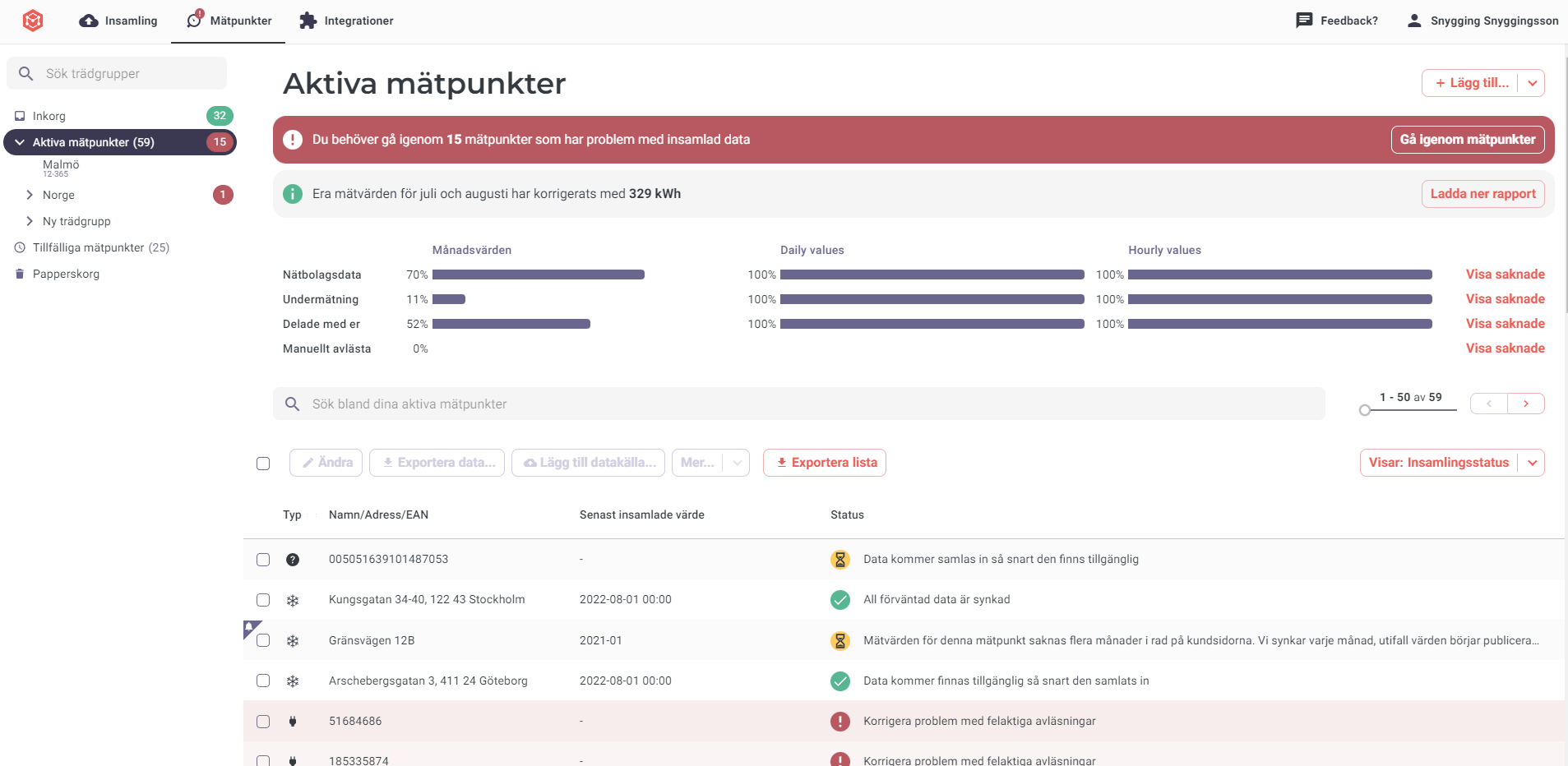
- If you want more information, you can display the metering points that are still missing a value by clicking “Show missing metering points”.
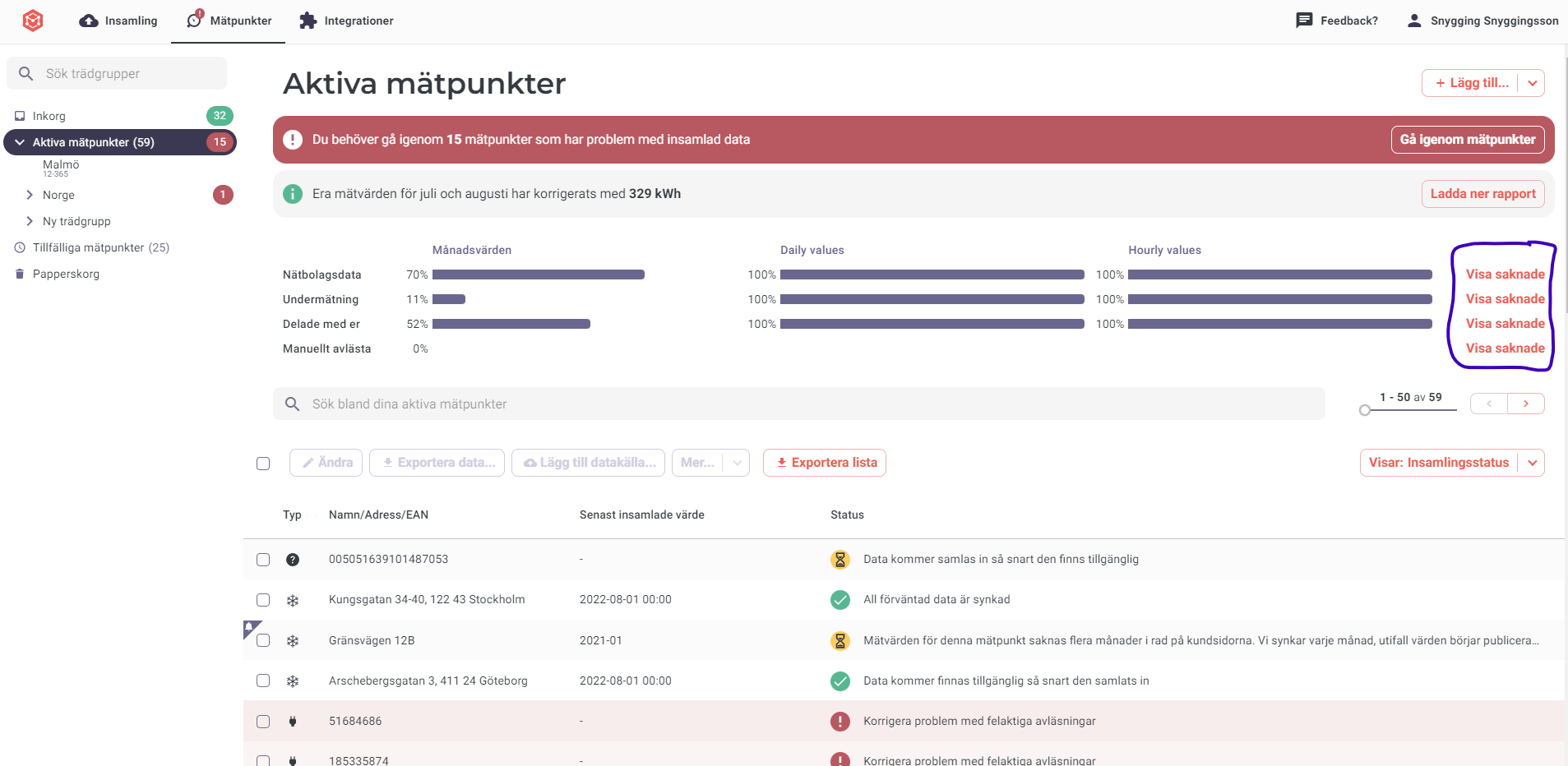
- In “Active meters”, collection status is shown with a green, yellow, or red symbol. Read more about these symbols here . You can also filter for metering points that are missing expected hourly or daily values using the “Search” box.
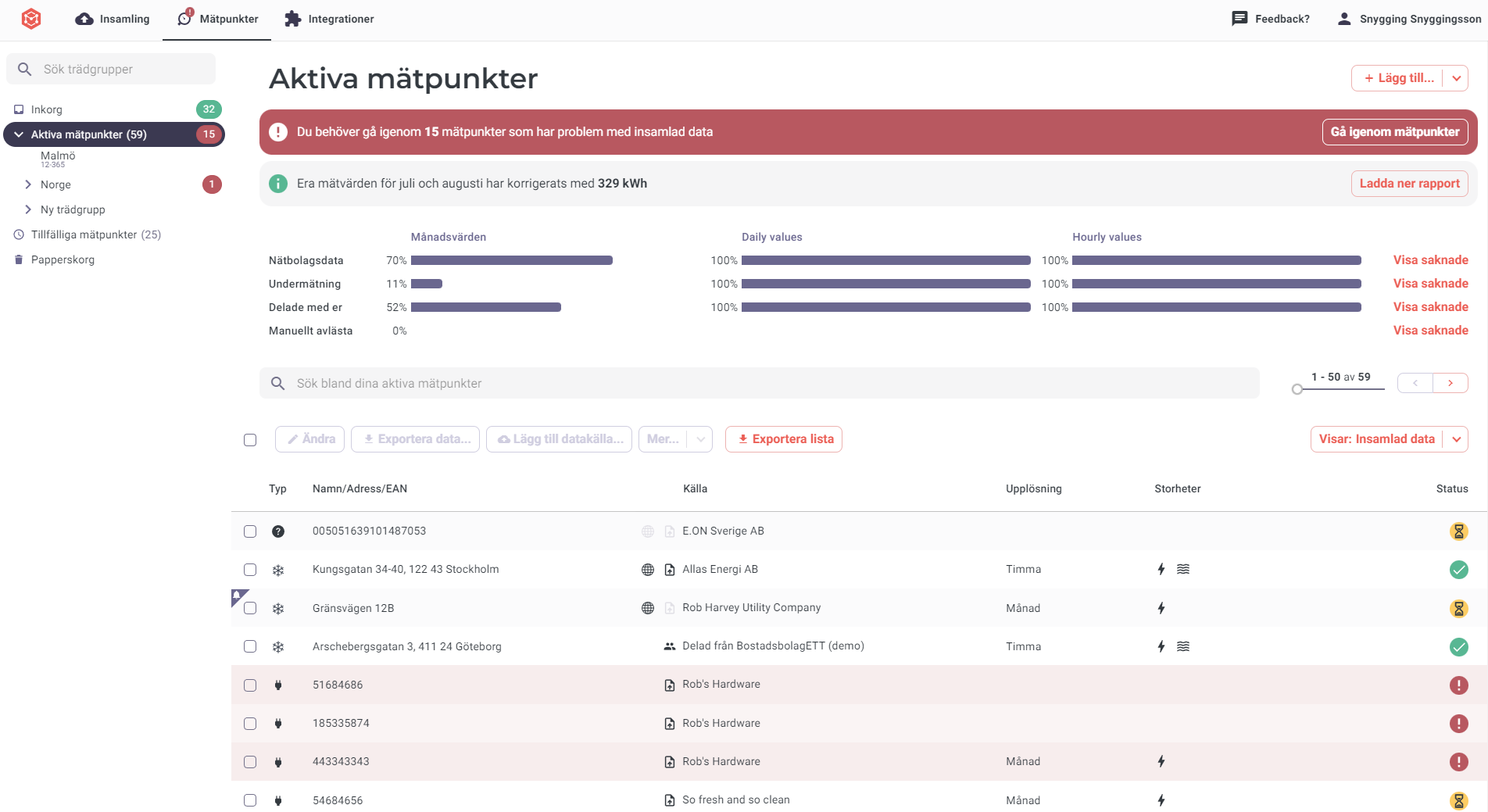
Metry monitors data collection of monthly values for utility provider metering points.
Collection report
A collection report is sent on the sixth working day of each month. It contains an overview of all metering points that are still missing the previous month’s value, with a reason why the value is missing and what actions Metry is taking.
The comments are also available in the customer portal on each metering point under Information about data collection. You can reply directly to the collection report email and your message will go straight to support.
Read more →Easily follow the collection status for your metering points. In the Metry portal, collection status is shown on the far right for each metering point.

What the status symbols mean:
- Green – We have collected all expected data for the metering point.
- Yellow – Some data is still missing, but this is normal and you do not need to take any action.
- Red – You need to take action for collection to continue working.
Read on to learn more about when the different symbols are displayed for different types of metering points, and what actions you can take.
Read more →When will values be collected?
It depends on the type of metering point, whether the value comes from customer portals or another source, and how early the utility provider posts invoiced values.
Electricity: There is a legal requirement that monthly values must be collected by utility providers by the fifth working day of the month. When they appear on customer portals can still vary.
District heating and other energy types: No equivalent legal requirement applies.
Read more →Incorrect or duplicate values occasionally occur when a utility provider sends wrong data, when a meter is replaced, or when a sync is repeated unexpectedly.
What counts as an incorrect value
- A value that is significantly higher or lower than expected (e.g. double the normal consumption)
- A zero value for a period when consumption clearly occurred
- A value that does not match the utility’s own customer portal or invoice
Step 1: Verify against the source
Before requesting a correction, compare the value in Metry with the value shown on the utility’s customer portal or invoice for the same period. If the utility’s own system also shows the same value, the data from Metry is correct and the issue is with the utility.
Read more →Interpolation is used to obtain consumption values as close to reality as possible, based on two meter readings. Suppose a reading is taken on March 1 showing 25,058 kWh, and a second reading on April 1 shows 25,158 kWh. The consumption for March is then 100 kWh, calculated as:
25,158 - 25,058 = 100 kWh
The example above assumes that the readings were taken exactly at the month turnover, i.e. March 1 at 00:00:00 and April 1 at 00:00:00. In this case, no interpolation is needed.
Read more →Do you have water meters or other meters that lack connectivity? Do you want to read them manually in a smooth and reliable way?
We offer these tools for managing your manual data collection with us:
- The Readings app - used by building technicians and other staff to enter meter readings and handle meter replacements.
- The Metry portal - used to manage metering points, users, and monitor collection status.
The Readings app
Read more →The Metry portal includes settings for manually read metering points that control when readings can be entered in the Metry Readings app and how and when consumption values are calculated based on those readings.
To avoid spending time checking metering points that are not read exactly within the reading period, or metering points that are not read every month, there are also settings that mean you rarely or never need to worry about when a metering point has actually been read - monthly consumption values are still created.
Read more →Metry collects automatically read sub-metering and ISM/IMD data from suppliers via robots, FTP and SMTP. In the Metry portal, users can find a list of the suppliers Metry supports. If your supplier is not supported, we will contact your designated contact person to explore options for collecting your data.
Select your supplier from the list and enter the information required to start collection. Metry then handles the entire chain until data is in place and metering values are available in the customer portal.
Read more →Sometimes you receive incorrect readings from your sub-metering systems. Errors can occur anywhere from when the data was created to when it was transmitted or received — for example through corrupt files, incorrect data interpretation or incorrectly configured gateways.
Regardless of how the error occurred, you can of course fix it directly in Metry’s system.
If incorrect readings have come in that you want to remove, this can be done in two ways. If it is individual incorrect values, you can easily remove them in the view showing readings for a single meter by using the red delete icon to the right of the reading.
Read more →There are currently three different ways to connect sub-meters/DUCs to Metry. On our Integrations page you can see how your specific meter type can be connected. If you have meters from other suppliers, you are welcome to contact us and we will arrange data collection from those as well.
- Connection via the meter’s web interface. Some meters/DUCs have a web interface where you can log in and start sending data to Metry. This is done by clicking the “Connect to Metry” button in the device settings and entering your Metry credentials.
- Direct connection from the Metry customer portal. For this type of connection, the meter must be accessible from the Internet. Once you have entered the meter’s IP address and login credentials, Metry’s robots log in periodically and collect the metering values.
- Manual connection. Some meter suppliers have different settings per customer installation. For these meters, Metry needs to contact the supplier or installer to obtain the information required for the connection. These meter types can also be connected from the Metry customer portal, but you will be contacted by your account manager at Metry to complete the connection.
This article describes how to get third party access to a Metry user’s energy data. Make sure you have the following set up before you continue:
- Developer account (You get this when signing a Metry developer partnership)
- App registered in your developer account
- Demo account with example data
The OAuth 2 concept
Metry uses OAuth2 to grant third-party applications access end user’s energy data. OAuth2 is an industry standard authorization framework that takes care of the approval interaction between the resource owner (energy user), the third party application and Metry.
Read more →For systems that fetch consumption and cost time-series data from Metry, it is common that the meters in Metry need to be mapped to the system’s objects such as meter points, buildings or premises. This is often needed to be able to visualise or report consumption and costs for a building.
Some systems solve this by importing everything from Metry and then provide a graphical user interface for the end user to connect the metering points from Metry to the correct building using data Metry has about the meter. Use the _id property on the meter or tree node when saving a reference to the meter in your system. This identifier is available when receiving data via streams or exports and is used when fetching consumption directly from the consumption API.
Read more →Metry strives to collect as much data as possible to make it easier for our customers to focus on energy savings.
Metry’s integrations page contains a collection of trusted services and apps that you can easily connect your energy data to. The selection ranges from impressive visualizations to enterprise systems for property management.
Several of the apps are available to try for free, so you can immediately start exploring the various possibilities for getting the most out of your data.
Read more →How do I connect? If the service is on the Integrations page and supports direct connection, you can connect directly there. You approve the service’s access to your account when you choose to connect.
If the service is listed but requires manual connection, contact support@metry.io and we will help you get in touch with the service provider.
The service I want to connect to is not on the Integrations page — what do I do? Contact support@metry.io and we will look into the options for connecting to the service.
Read more →Some software providers also want to be responsible for the collection of data for their customers. Instead of each customer having their own Metry account, you as a software provider can have a single Metry account collecting data for all customers. What kind of model to use will depend on your service and how you like to work.
Benefits of consolidating all collection in one Metry account
- Your customers are reluctant to sign up for Metry themselves.
- You already take care of the collection for your customers and prefer to not change your service offering or how you work.
Benefits of customers having their own Metry account
Existing Metry users with collection already setup can start using your service with little to no setup time.
Customers can set up the collection in Metry themselves so that they don’t need to provide you with their credentials to utility providers’ customer pages.
Customers can resolve issues with collection themselves, letting you as a developer focus on building your software.
Resolving collection issues are generally more convenient as Metry can be in contact with the one holding the utility contract.
The customer can be billed for the usage of Metry while you as a developer can build on top of Metry for free.
You can connect Metry data to Microsoft Copilot Studio, Power Automate, or other Power Platform services using the Metry API and an API token.
What you need
- A Metry API token (see below)
- Access to Microsoft Copilot Studio or Power Platform
- Basic familiarity with HTTP connectors or custom connectors in Power Platform
Get your Metry API token
- Log in to the Metry portal .
- Go to Settings > API.
- Copy your API token. Keep this private - do not share it with third parties.
Connect via a custom HTTP connector
In Power Platform, Metry can be reached as a REST API. The base URL is https://app.metry.io/api/v2/. Authentication uses a Bearer token.
This article describes the data format for files created by exports with the data format named ConsumptionCSV.
To set up an export for your account to another system, contact us at support@metry.io . You can read more about the export functionality in Metry in our article Exporting data from Metry .
See the API reference for how to create an export via the API.
The file is a tabular text file, using a semicolon as a column delimiter. Each line has one consumption value and other fields describing the meter. The following columns are in order:
Read more →Metry’s MCP server lets any MCP-compatible AI tool query your energy data directly - no copy-paste, no exports, no API keys to manage.
MCP (Model Context Protocol) is an open standard that lets AI assistants connect to data sources and pull live data in real time.
What you can do
Once connected, you can ask your AI tool questions like:
- “Which building used the most electricity last month?”
- “Which meters have not reported data this week?”
- “Compare heating consumption for property X between this year and last year.”
- “Flag any meters with missing data since Monday.”
The AI pulls from your actual Metry data rather than making assumptions.
Read more →Metry provides an API for application developers to interact with the Metry platform programmatically. It makes it possible to fetch utility metering points, consumption data, interacting with tree structures and more.
Common use cases are the following:
- Importing consumption and cost data to Building and Energy Management Systems
- Visualising consumption and cost data in dashboards
- Uploading readings from metering systems to Metry for centralised storage and quality assurance
- Automating tasks performed in Metry such as managing meters, tree structures and collection.
Getting access to the API
To start using the API, requests need to be authenticated for a Metry user.
Read more →To access energy data as a third party, you must have signed a Metry developer partnership.
Create a new app
The next step is to register an app in your developer account. The registration will provide you with the required information needed to request limited access to the accounts of Metry users.
Click “Create app” under Apps. The name you enter here will appear on the consent screen where the end-user approves your app to access to its meters and consumption data.
Read more →To use the Metry API to access your energy data, you need a personal access token. You can create one under Settings > Access token in the customer portal. Note that you must have administrator rights in the Metry portal to create an access token.
Documentation is available to help you make API calls using your access token — read more at Metry API .
Note: If you are a developer and want to create a new application or a service in an existing application that calls Metry, we recommend the following resources:
Read more →The Metry API supports three granularities for consumption data: month, day, and hour. Monthly values work for most metering points, but hourly and daily data can return null even when the endpoint is correct. This is by design, not a bug.
Why hourly and daily values may be null
Hourly and daily data is only available if:
- The utility provider delivers data at that resolution, and
- Hourly or daily collection has been ordered for that specific metering point.
Monthly data is the default and is available for almost all metering points. Hourly values require a separate order - either from the utility provider directly or via Metry - and come at additional cost in some cases.
Read more →To import data from Metry to store it in another system, Streams is the preferred method. Consumptions values and other data can be pushed through streams as soon as they are saved in Metry that other systems can consume.
See the Streams API reference for more details
If the meters in Metry needs to be mapped to other objects in your system for it to be able to save or process the data, see Mapping meters to objects in your system for how this can be done.
Read more →The easiest way to export your energy data from Metry is to use our API. This gives you access to all your active metering points with their associated metering values.
We partner with several providers of property management and monitoring systems that handle the export for you.
Contact our support at support@metry.io if you want to know more.
Read more →Export metering values
To export monthly consumption values, filter for the metering points you want and use the Export list button next to the search field. In the dialog, select Monthly values and click Download.
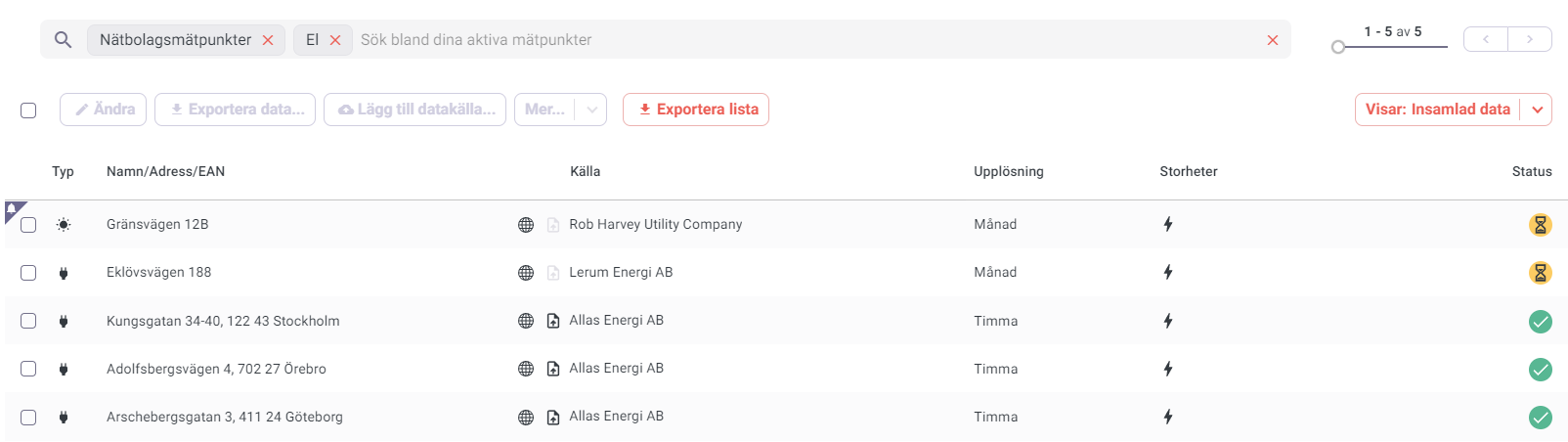
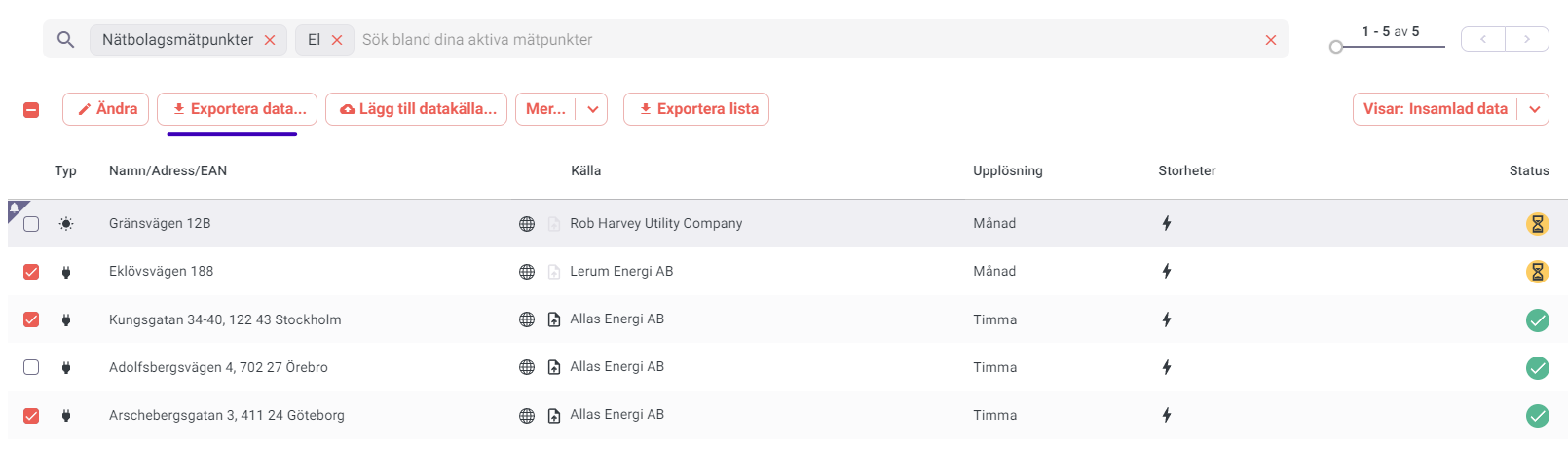
To export at higher resolution (daily/hourly), go to Active metering points, select the metering points, choose Export data…, then select format and time range, and click Download.
Export metering points list
Go to Active metering points and use the Export list button. In the dialog, choose the information you want to include and click Download.
Read more →Bill your tenants using consumption data from both main meters and your own sub-meters. In Metry you handle data collection, the mapping between meters and rental units, and all quality control of metering values. Tariffs and similar settings are managed by the billing department as usual in their accounting system.
We support billing for the following configurations:
- Pass-through billing of main meters
- Individual sub-metering (ISM/IMD) billing
- Fixed percentage distribution of consumption from main meters or sub-meters
- Deduction of consumption from sub-meters (e.g. if a meter for facade signage is connected in series with a tenant meter due to how the cabling is routed in the building)
The tenant billing add-on
Contact your account manager or support@metry.io to order the tenant billing add-on.
Read more →Go to Metering points and search for or select the metering point you want to stop sharing. Click on the metering point and choose “Share metering values”. Then click the trash icon on the row for the recipient you want to stop sharing with. When you click “Stop sharing”, the recipient will no longer have access to the metering values for that metering point.
Read more →There are several ways to let others access your collected metering points and metering values. The different options for collaboration are explained below. Feel free to contact support@metry.io if you need help deciding what suits you best.
Share individual metering values
If you want to share individual metering values, the easiest option is to use the share metering values feature.
Share all metering values
If you want to let others access all your metering values, you can invite them to your account, provided you already have an organization account . This works well if multiple people connected to your organization need access to credentials for customer portals, metering points, and metering values.
Read more →In the customer portal, select the metering points you want to share and choose “Share metering values”.
What is shared? The selected metering point and all its metering values, as well as the metering point ID (EAN), name, address and comments from the meter administrator. Shared metering points appear as copies in the recipient’s Inbox. Changes made after sharing (to name, address, etc.) are not synced in either direction.
What is not shared? Your own comments and tags on the metering point.
Read more →You can request to assign a manager. Contact support to get help with this.
Who can manage an account? Anyone with a manager account at Metry.
What does it mean for someone to manage my account? You do not need to handle your Metry account yourself - a manager takes care of the ongoing work. The entire account is accessible to a manager, including settings for data collection, metering points, metering values, and administrator rights.
Read more →It is easy to reset your password. Go to Reset your password . Follow the instructions and you will receive an email with a link to create a new password.
Read more →If multiple people need access to the same collection data, it is possible to create an organization account. This means that everyone can have their own account while still having access to the organization’s data collection, metering points, and metering values.
Permission restrictions are available for an organization account. A person connected to the organization can be a user or an administrator. Multiple people in the organization can be administrators.
Read more →Add a new user
You can invite new users yourself if you have an organization account.
- In the Metry portal, click your account name in the top right corner and select Settings.
- Go to Collaborators and click Invite new collaborator.
- Enter the new user’s email address and select the appropriate role.
- The user will receive an invitation email with a link to set their password.
If you do not have an organization account, or if the invite does not arrive, contact support@metry.io with the new user’s name and email address. We will add them manually.
Read more →By default, Metry sends one invoice per month covering all costs from the previous month. However, it is also possible to add multiple invoice recipients, so that different regions or departments within the company can be billed for their own metering points — even though they share the same Metry account.
The service costs SEK 50 excl. VAT per invoice.
How do I get started?
To get started, contact support@metry.io and provide:
Read more →I have received two identical invoices
Duplicate invoices sometimes occur when an invoice is re-sent or when a billing system processes a document twice. Before contacting us, check whether both invoices have different invoice numbers. If they do, only one is correct. If the numbers are identical, one is a duplicate.
Contact support@metry.io with both invoice numbers and we will clarify which one to pay and issue a credit note for the duplicate if needed.
Read more →A good folder structure makes it easier for multiple people to collaborate on the same Metry account.
Build a tree that corresponds to your regions, areas and properties, so the right person can quickly find their data and handle any required actions.
How do I create a group in the folder structure?
- Click the Add… button in the top right corner.
- Select the type you want to create:
- Group (or Subgroup if inside an existing group) - a generic container
- Property - for a property or real estate asset
- Building - for a building within a property
- Enter a name and optionally an ID for your group.
How do I add metering points to a tree group?
Option 1 - Select and move:
- Select the metering points.
- Click More… above the list and select Move to tree group…
- Search for the group you want to move the metering points to and click Move.
Option 2 - Drag and drop
- Select the metering points.
- Click and drag them to the group you want.
Where are metering points visible in the tree?
All metering points are always visible in Active meters.
Read more →Active meters
Active meters is the list of all metering points you have activated. Metering values are available in the customer portal and via the API for metering points in Active meters.
You can move a metering point to Active meters from the Inbox or Trash at any time. Metry bills monthly, in arrears, based on the number of metering points that were active at any time during the previous month.
Read more →When a data collection is added, all metering points end up in the Inbox. This also applies to metering points added later or shared with you by other users. Metering values are not available in the Inbox — to access them, the metering point must be activated. Activating a metering point means it will be billed from the following month.
Move to Active meters Select the metering points you want to activate and choose “Activate metering points” to move them from the Inbox or Trash. You can also drag multiple metering points to Active meters.
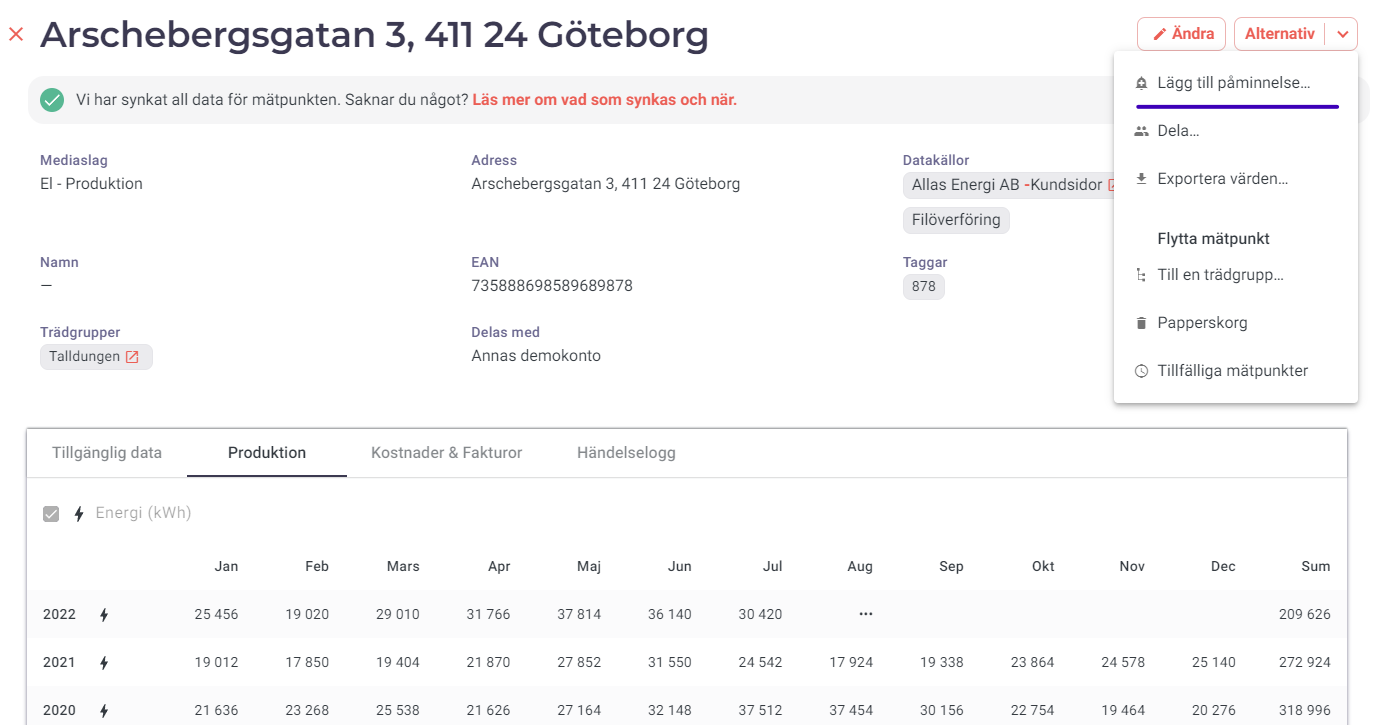
Read more →For Active and Temporarily active metering points, you can set reminders on metering points that you need to remember for various reasons.
Either do it in the details view of an individual metering point:
Or you can do it for multiple metering points at once:
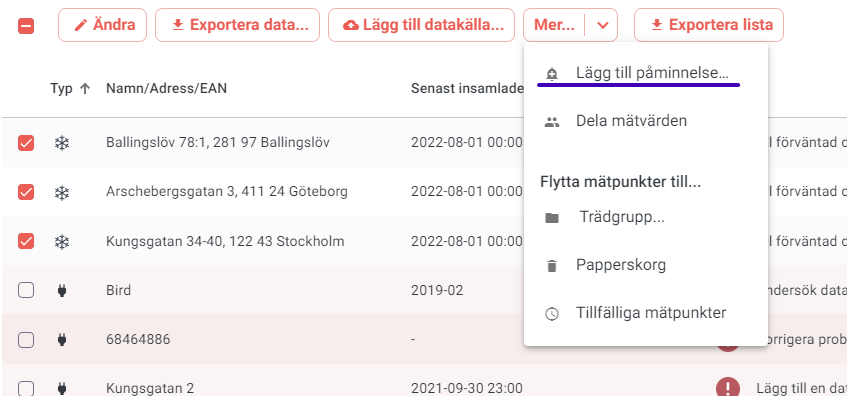
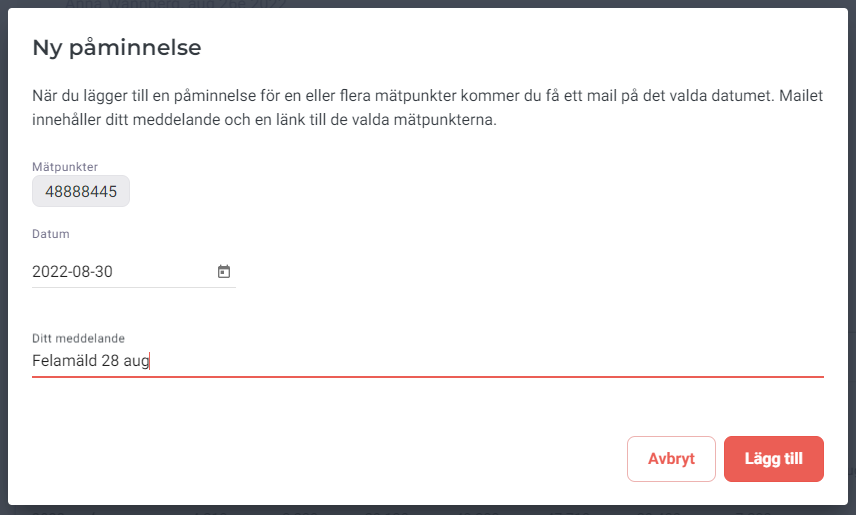
When you add a reminder for one or more metering points, you will receive an email on the selected date. The email contains your message and a link to the selected metering points. The reminder will be sent to the Metry user who created it, but all users can see the reminder in the Metry portal.
Read more →This guide walks you through the first steps after logging in to Metry for the first time.
Step 1: Add your utility providers
Metry collects metering data from your utility providers’ customer portals. To get started, add the utilities you have contracts with.
- In the Metry portal, click the Collection icon on the far left.
- Click Add provider and search for the utility in the list.
- Enter your login credentials for that utility’s customer portal (username/password or BankID).
- Repeat for each utility provider.
If a utility is not in the list, see My utility provider is not in the list, what should I do?
Read more →Example data is a good way to get started with Metry as a developer. We have put together a set of example data that covers most real life scenarios in terms of data granularity and availability.
Demo account
To access example data you need a Developer-account and a Demo account. You will get this as a part of signing up as a Metry developer partner. Your demo account appears in the User menu:
Read more →Metry can continuously export all meter consumption data from for a user to another system via for example FTP, HTTP or email. An export can be set up either by contacting us at support@metry.io or via our API.
It is common that existing energy management systems already have good support for receiving and processing files with data of different formats. In this case, it can be easier, cheaper and faster to integrate with Metry by importing files with the meter and consumption data.
Read more →